
ra Readaloud

Google and voice readers

How to use google read aloud across Google's apps

If you searched for google read aloud, the first question is which Google surface holds your text. Chrome, the Google app, and Play Books offer different ways to hear content; a general voice reader is a separate choice for text you bring yourself.

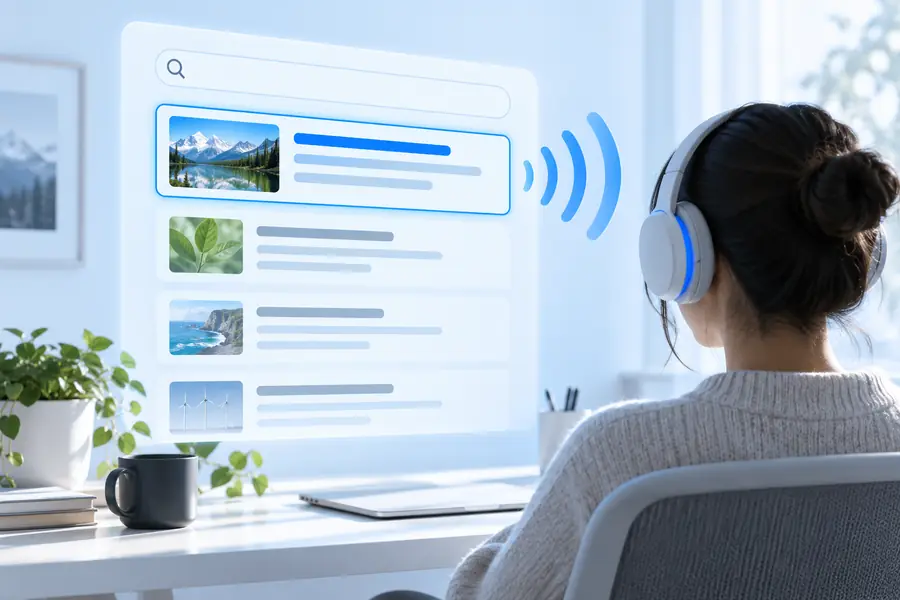
Readaloud voice-reading illustration

This entry point versus a general voice reader

The choice starts with where the words live. A browser feature works on a supported page; a separate reader may be more useful when you already have text to work with.

Three things Google's reading routes do

These routes are useful because they begin where you're already reading, not because every Google app shares one universal player.

Chrome article reader

You want to listen to a supported web page without first copying its text elsewhere.

Look for Chrome's listening or reading controls in the browser version you use; availability depends on the device and page.

how to use read aloud in chrome

Google app reader

You opened an article through the Google app and want to check for its reading option.

Inspect the article menu. If a listening control appears, you can stay with that article rather than switching to another text source.

read aloud online

Play Books reader

You want to hear a book already open in Google Play Books.

Check the book's controls for a spoken-reading option; support can vary by title and device.

what is read aloud for adults

Document reader

You have a PDF rather than a web article or a book in Play Books.

Check whether its words can be selected, then choose a reader that accepts that text if the current app offers no suitable control.

read aloud text pdf

How to start

Begin with the app containing the content. Menu names and placement can change with platform and app updates.

Identify the surface

Open the article in Chrome or the Google app, or open the title in Play Books. A search result, web page, and ebook are not the same input.

Check its reading controls

Look in the page or book menu for a listening or read-aloud option. On Chrome, also check Reading mode where it is available.

Try a text-based fallback

If no control appears, confirm that the content contains selectable text. For a separate voice-reading workflow, use text you are permitted to copy.

The side-by-side comparison

Google app or Chrome entry point General voice reader
1

Starting place

Google app or Chrome entry point

A supported page already open in the app or browser

General voice reader

Text supplied to the reader

2

Main advantage

Google app or Chrome entry point

May let you remain in the page you're viewing

General voice reader

Can suit text gathered from more than one source

3

Finding the control

Google app or Chrome entry point

Depends on the app, platform, and page

General voice reader

Depends on the reader's own interface

4

Web articles

Google app or Chrome entry point

Check the page menu or available reading controls

General voice reader

Supply the article's text if permitted and supported

5

PDFs

Google app or Chrome entry point

Do not assume a page-listening control accepts a PDF

General voice reader

Check accepted inputs and whether the PDF contains selectable text

6

Voice and playback options

Google app or Chrome entry point

Vary by Google surface and device

General voice reader

Vary by the reader you choose

7

Best first check

Google app or Chrome entry point

Is a listening control present for this content?

General voice reader

Can this reader take the text I have?

Limits to check before you listen

No single Google-wide switch

Turning on a reading feature in one Google product does not establish the same control in every other product.

WorkaroundCheck the menu in the specific app holding your article, book, or document.

Not every page is supported

A missing listening option can reflect the page, your device, or the current app version; it does not necessarily mean audio is muted.

WorkaroundTry another readable article, or use selectable text with a suitable reader.

An image is not readable text

Text shown only inside a scan or screenshot may not be available to a voice reader as words.

WorkaroundUse an appropriate text-extraction step first, then review the extracted words for errors.

Book and PDF behavior differs

An option available for one book or web article does not guarantee the same playback route for another file.

WorkaroundCheck the current title's controls and the reader's accepted input types.

The difference in starting points

Find the content

Illustration associated with finding a Google reading entry point
Illustration associated with checking Chrome reading controls
Check its controls

These illustrations show the decision, not a guaranteed button location. App menus and supported pages can change.

Choose a route for your text

Want a separate voice-reading option?

If the content you need to hear is outside a supported Google page or book, explore Readaloud's voice-reading route. Check the destination's current inputs and controls before relying on it for a particular file.

  • Start by identifying where your text lives
  • Check whether the words are selectable
  • Confirm the destination supports your input

Questions about Google's reading options

Open the page you want to hear and check Chrome's page menu or available Reading mode controls. The option and its location can differ between desktop and mobile, and some pages may not offer it.

First check whether that article's menu offers a listening control. If it does not, the page or your app and device combination may not support that route; try a different readable article or a separate reader for selectable text.

Do not assume a web-page listening option will handle a PDF. Check the PDF viewer's own controls and whether the document has selectable text; a scanned page may need text extraction before speech is possible.

No. Google's controls belong to particular apps and supported content, while a separate voice reader uses the inputs that reader accepts. Choose by where your text is and which controls are actually available.

Start listening
Start listening